
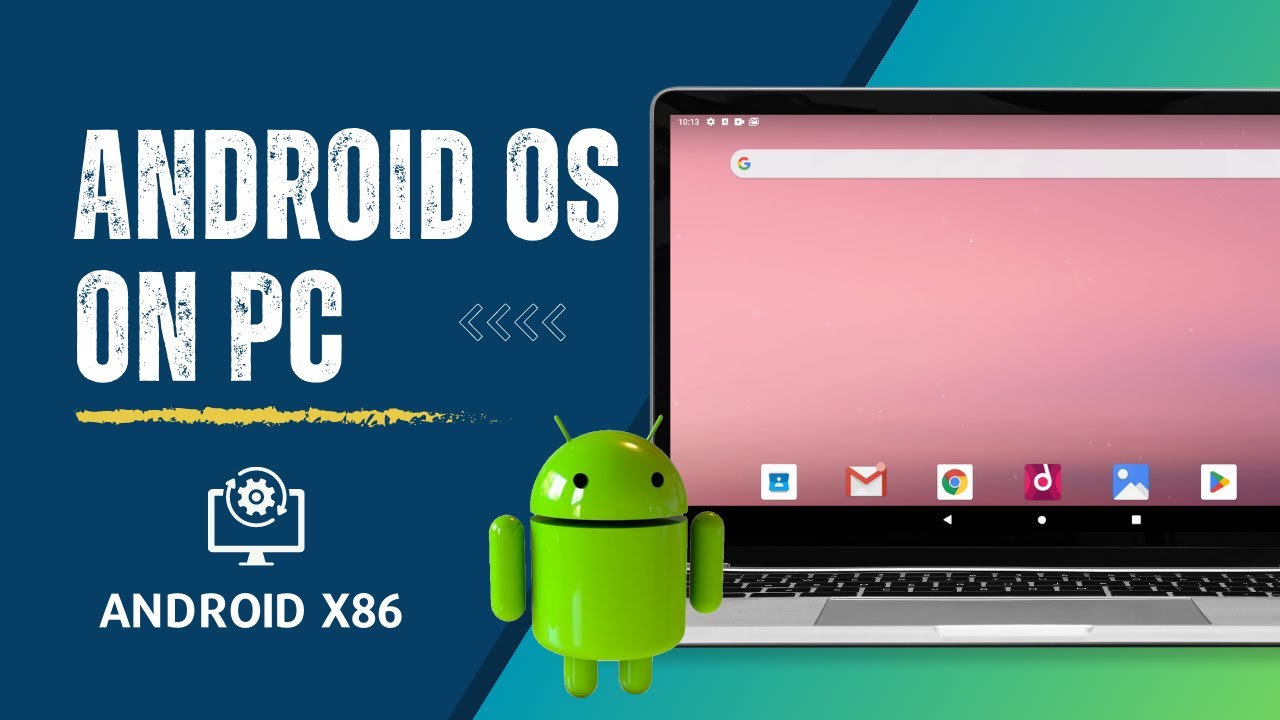
Best android OS for PC
What Is “Android OS for PC”?
Traditional Android runs on phones/tablets. Some projects port Android (open source or modified versions) to x86 PCs (Intel/AMD) so the OS boots and runs like Linux/Windows, with support for keyboard, mouse, and large screens.
🧠 Key Things to Know Before You Choose
- Base tech: Most of these are based on Android-x86, a port of Android for PC hardware.
- App support: Some come with Google Play Services; some require side-loading APKs.
- Purpose varies: Some are tailored more toward gaming, others toward desktop use or general Android experience.
- Installation: Usually via bootable USB or dual boot with Windows/Linux — similar to installing a Linux distro.
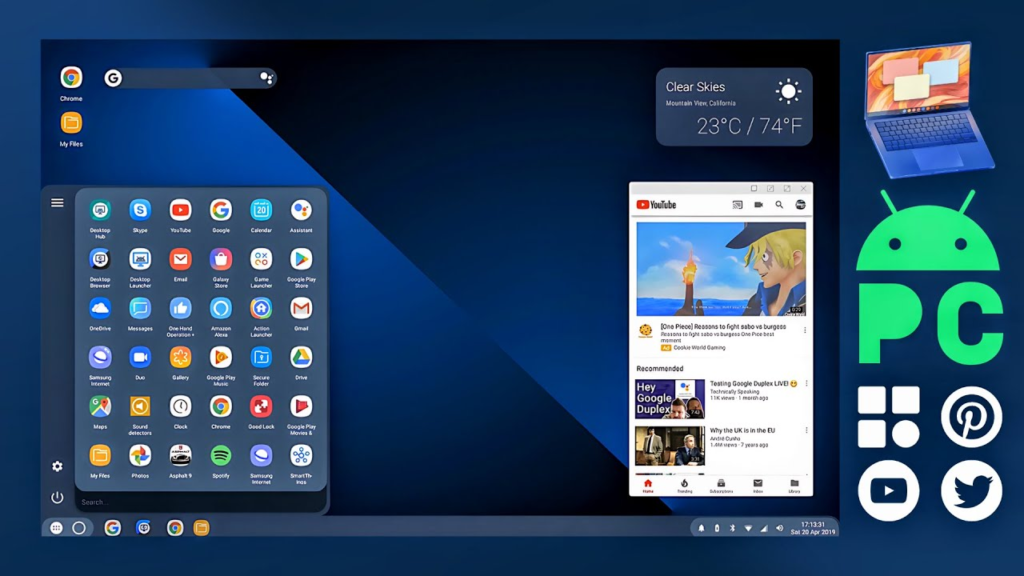
🏆 Best Android OS for PC (Detailed Guide & Reviews)
📌 1. Bliss OS
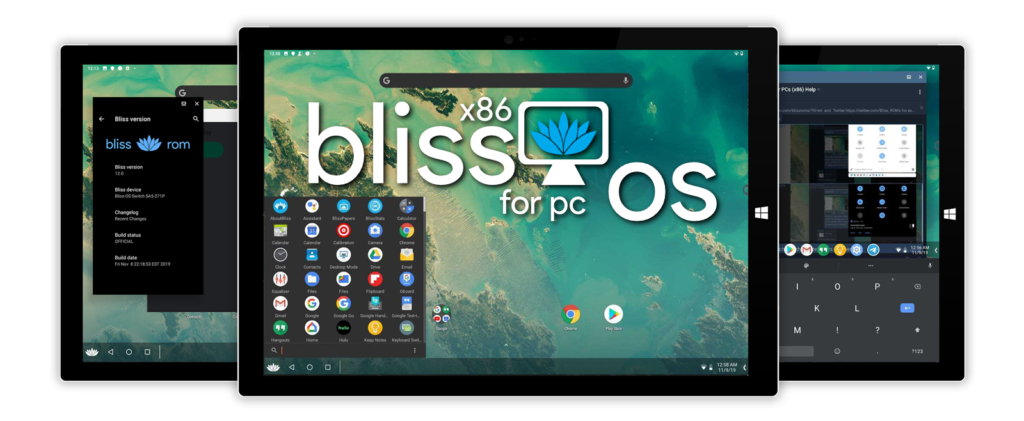
🔹 Best overall Android experience on PC
- Latest available Android versions (including Android 12 builds).
- Designed for desktops with a taskbar, multi-window support, and more stable hardware support.
📌 Best for: Everyday Android use, productivity, app testing, media.
👍 Why choose: Most feature-complete Android experience on PC with modern version support.
📌 2. PrimeOS
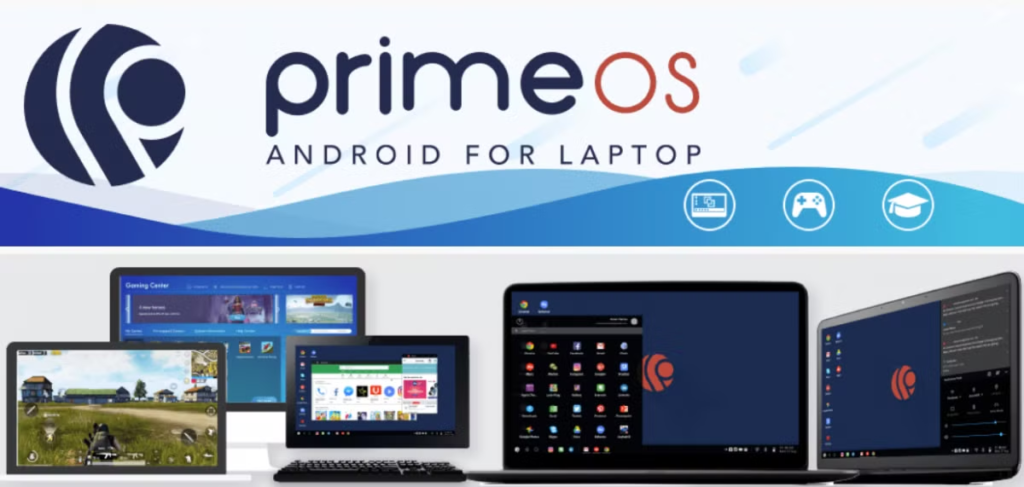
🔹 Great all-round Android OS with desktop enhancements
- Desktop-style UI with start menu and taskbar.
- Includes keymapper tools and gaming center.
- Offers multi-window support and typical PC shortcuts.
- Best for: Gamers and general users who want desktop feel.
👍 Why choose: Best classic “Android desktop” integration and gaming tools.
📌 3. Android-x86 (Vanilla Port)
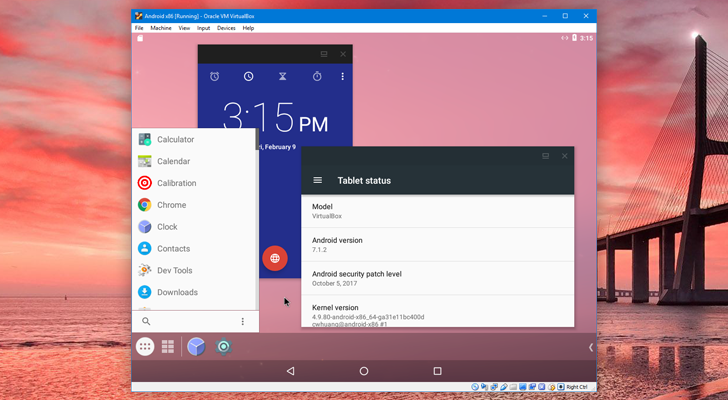
🔹 The original source for all Android PC builds
- Provides the purest Android experience without many tweaks.
- Best for: Purists and developers.
📌 4. Phoenix OS
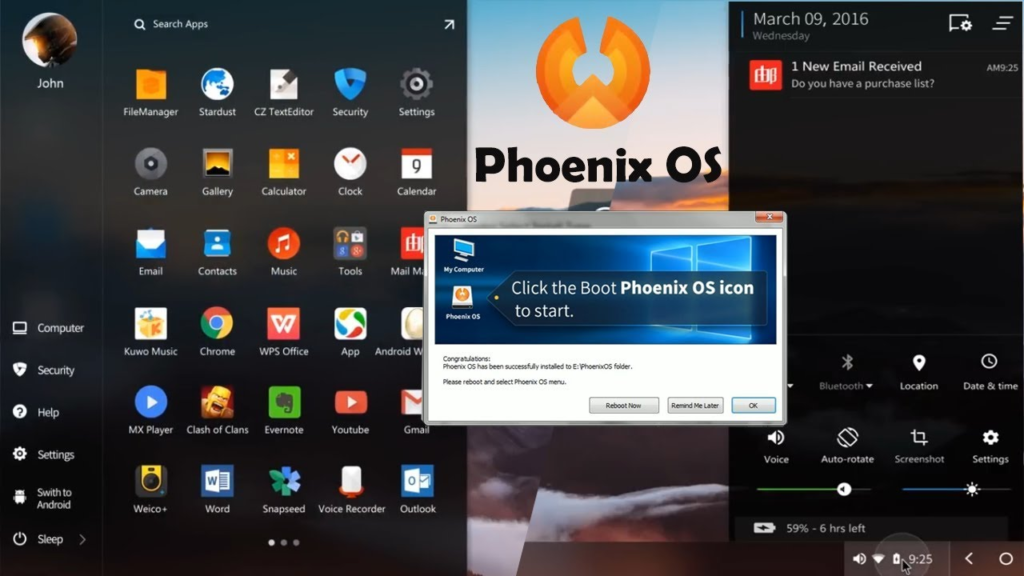
🔹 Android-based OS with desktop optimization
- Comes with taskbar and start menu.
- Designed for bigger screens and multitasking.
- Best for: Light use, test installs, casual gaming.
📌 5. FydeOS
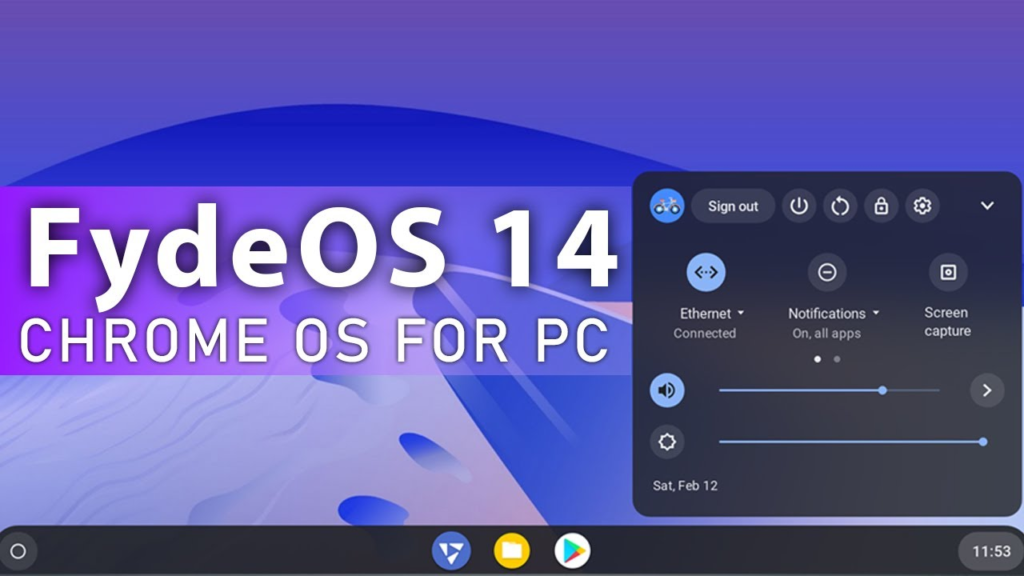
🔹 More like a ChromeOS/Android hybrid
- Similar experience to ChromeOS but can run Android apps.
- Offers simplicity and speed.
- Best for: Chromebook-style Android experience.
🛠️ How to Install (Step-by-Step)
Step 1: Download the OS image
- Official source (e.g., Bliss OS from sourceforge or official website).
- Choose 32-bit or 64-bit build according to your PC.
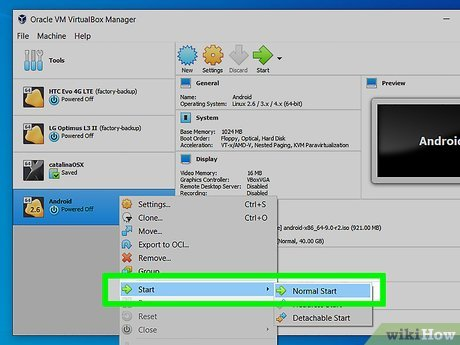
Step 2: Create Bootable USB
- Use tools like Rufus or Balena Etcher.
- Format your USB (typically FAT32).
Step 3: Boot from USB
- Restart your PC and enter BIOS/UEFI.
- Select USB drive as boot device.
Step 4: Install or Try Live
- Many builds offer a Live mode (no install).
- Or install side-by-side with Windows/Linux.
Step 5: Configure Android
- Sign into Google if supported.
- Install Play Store or APKs as needed.
🧠 Quick Comparison
| OS | Best For | Play Store | UI | Stability |
|---|---|---|---|---|
| Bliss OS | All-around use | Yes | Desktop | Excellent |
| PrimeOS | Gaming + desktop | Yes | Desktop | Good |
| Android-x86 | Purists/devs | Yes/Manual | Mobile | Variable |
| Phoenix OS | Casual use | Manual | Desktop | Mixed |
| FydeOS | ChromeOS-like | Partial | Modern | Good |
🧩 Final Recommendation
✅ Bliss OS — Best overall Android for PC in 2025.
✅ PrimeOS — Best if you want gaming optimizations.
✅ Android-x86 — Best if you want stock Android.
✅ Phoenix OS — Best for light, casual installs.
✅ FydeOS — Best hybrid experience.
FAQs
Can I install Android OS alongside Windows? (Dual Boot)
Yes. Most Android OS builds support:
Dual-boot with Windows/Linux
Installing on a separate partition
Running Live mode from USB without installing
Is Android OS for PC good for gaming?
Yes — especially:
PrimeOS (built-in key mapping, gaming center)
Bliss OS
They support:
PUBG Mobile
Call of Duty Mobile
Genshin Impact
Free Fire
Performance depends on GPU/CPU.
What are the hardware requirements?
Minimum:
2GB RAM
Dual-core CPU
8GB storage
Recommended:
4–8GB RAM
SSD
Intel/AMD 64-bit
UEFI compatible (most builds support BIOS too)
Is Android OS better than Android emulators like BlueStacks or LDPlayer?
Android OS advantages:
Faster
Uses full system resources
More stable for long sessions
Better gaming performance (often)
Emulator advantages:
Easier to install
Runs inside Windows
Good if you need only occasional use
Can I use Android OS for productivity?
Yes — great for:
Social media
Browsing
Streaming (Netflix, YouTube)
Office apps (Docs, Sheets, WPS, Microsoft)
Coding Android apps (with ADB tools)
Not ideal for heavy desktop tasks like Premiere Pro, Photoshop, etc.
READ ALSO: Nordlynx VS Openvpn

Hi, this is Masab, the Founder of PC Building Lab. I’m a PC enthusiast who loves to share the prior knowledge and experience that I have with computers. Well, troubleshooting computers is in my DNA, what else I could say….