
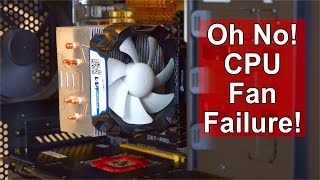
Fix cpu fan
What Is a CPU Fan?
A CPU fan cools the processor by pushing air through a heatsink. Without proper cooling, the CPU temperature rises quickly, causing:
- Thermal throttling (slow performance)
- Freezing or crashes
- Random restarts
- Overheating warnings
- Permanent hardware damage
Most desktop PCs and gaming laptops rely heavily on proper CPU fan operation.
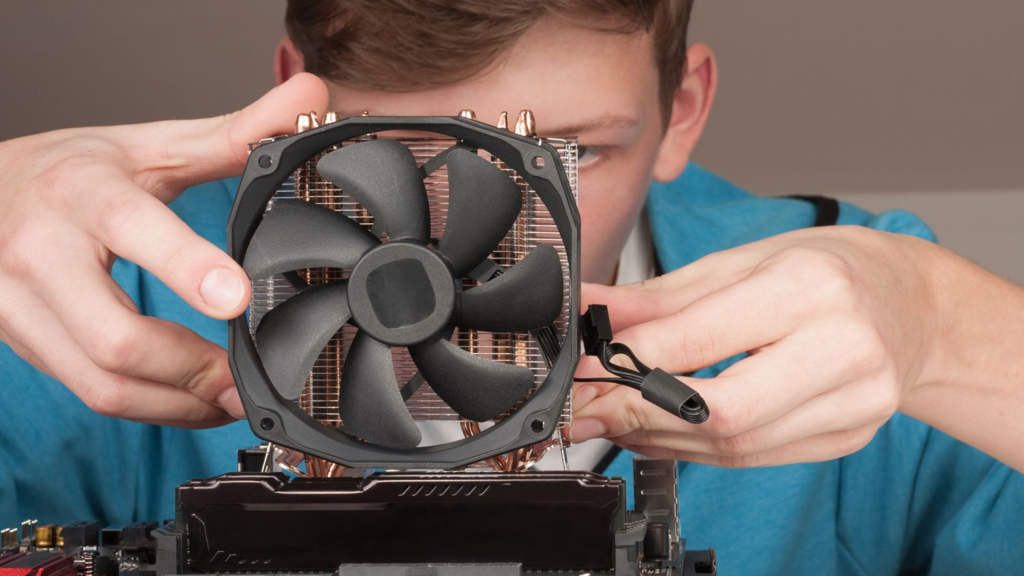
Signs Your CPU Fan Has Problems
| Symptom | Possible Cause |
|---|---|
| Loud rattling noise | Worn bearings |
| Fan not spinning | Dead motor or loose cable |
| PC overheating | Dust or failed fan |
| Sudden shutdowns | CPU overheating protection |
| Fan spinning slowly | BIOS settings or failing motor |
| Grinding sounds | Physical damage |
| “CPU Fan Error” at startup | Fan disconnected or defective |
Main Causes of CPU Fan Failure
1. Dust Build-Up
Dust blocks airflow and can stop blades from spinning properly.

Signs
- High temperatures
- Loud fan noise
- Reduced airflow
Fix
- Power off the PC
- Use compressed air
- Hold fan blades while cleaning
- Clean heatsink fins carefully
2. Loose or Unplugged Fan Cable
The CPU fan connects to the motherboard using a small connector labeled “CPU_FAN.”
Fix
- Turn off and unplug the PC
- Open the case
- Locate CPU_FAN header
- Reconnect cable firmly

3. Failed Fan Bearings
Older fans often develop worn bearings.
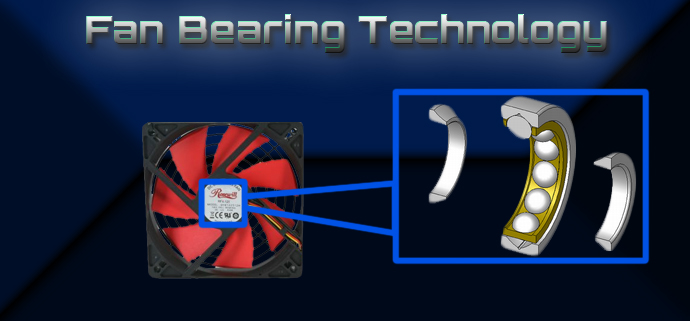
Symptoms
- Clicking
- Grinding
- Rattling
- Fan stops randomly
Temporary Fix
Some fans can be lubricated:
- Remove sticker on back
- Add tiny drop of lightweight oil
- Spin manually
- Reassemble
This may help temporarily, but replacement is usually better.
How to Check CPU Fan Speed
In BIOS/UEFI
Restart PC and enter BIOS.
Look for:
- CPU temperature
- Fan RPM
- Fan control settings
Typical CPU fan speeds:
- Idle: 600–1500 RPM
- Gaming/load: 1500–3000 RPM
Using Software
Popular monitoring tools:
- HWMonitor
- HWiNFO
- MSI Afterburner
These show:
- CPU temperatures
- Fan speed
- Voltage
- Thermal throttling
How to Fix an Overheating CPU
Step-by-Step
Step 1: Clean Dust
Use compressed air thoroughly.
Step 2: Check Airflow
Ensure:
- Front fans intake air
- Rear/top fans exhaust air
- No cables blocking airflow
Step 3: Replace Thermal Paste
Old thermal paste dries out and reduces cooling efficiency.

Basic Process
- Remove cooler
- Clean old paste with isopropyl alcohol
- Apply pea-sized amount
- Reinstall cooler evenly
READ ALSO: Best thermal paste for a CPU
Laptop CPU Fan Fixes
Laptop fans are harder to access but often suffer from dust buildup.
Common Laptop Fixes
- Clean vents
- Use compressed air carefully
- Replace thermal paste
- Replace failed fan

Warning
Opening laptops may void warranties.
When to Replace the CPU Fan
Replace the fan if:
- It no longer spins
- Bearings are noisy
- Temperatures stay high after cleaning
- Fan wobbles physically
- BIOS reports fan failure
Air Cooler vs Liquid Cooler
| Feature | Air Cooler | Liquid Cooler |
|---|---|---|
| Price | Cheaper | More expensive |
| Reliability | Very reliable | Pump can fail |
| Noise | Usually quiet | Can be quieter under load |
| Maintenance | Minimal | More complex |
| Cooling Power | Good | Excellent for high-end CPUs |
Popular CPU cooler brands:
- Noctua
- Cooler Master
- be quiet!
- Corsair
- DeepCool
Best CPU Fan Troubleshooting Checklist
Quick Checklist
If fan does not spin:
- Check power cable
- Test another fan header
- Reset BIOS
- Replace fan
If fan is loud:
- Clean dust
- Tighten screws
- Check bearings
- Adjust fan curve
If CPU overheats:
- Replace thermal paste
- Improve airflow
- Upgrade cooler
- Check heatsink mounting pressure
BIOS Fan Curve Settings
Most motherboards allow custom fan curves.
You can:
- Make the fan quieter
- Increase cooling under load
- Balance temperature and noise
Typical setup:
- Low RPM under 50°C
- Aggressive cooling above 75°C
Preventing Future CPU Fan Problems
Best Practices
- Clean PC every 3–6 months
- Use dust filters
- Avoid carpet placement
- Maintain good airflow
- Replace thermal paste every few years
- Monitor temperatures occasionally
Pros and Cons of Repairing vs Replacing
| Option | Pros | Cons |
|---|---|---|
| Repair fan | Cheap | Often temporary |
| Clean/lubricate | Fast | May not last |
| Replace fan | Reliable | Costs more |
| Upgrade cooler | Better temps/noise | More expensive |

Hi, this is Masab, the Founder of PC Building Lab. I’m a PC enthusiast who loves to share the prior knowledge and experience that I have with computers. Well, troubleshooting computers is in my DNA, what else I could say….